Connectors
Slack
Connect your Slack workspace to SurfSense
Slack OAuth Integration Setup Guide
This guide walks you through setting up a Slack OAuth integration for SurfSense.
Step 1: Create a New Slack App
- Navigate to api.slack.com/apps
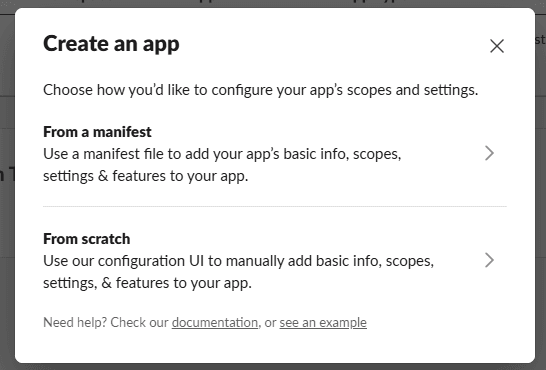
- Click "Create New App"
- Select "From scratch" to manually configure your app
Step 2: Name App & Choose Workspace
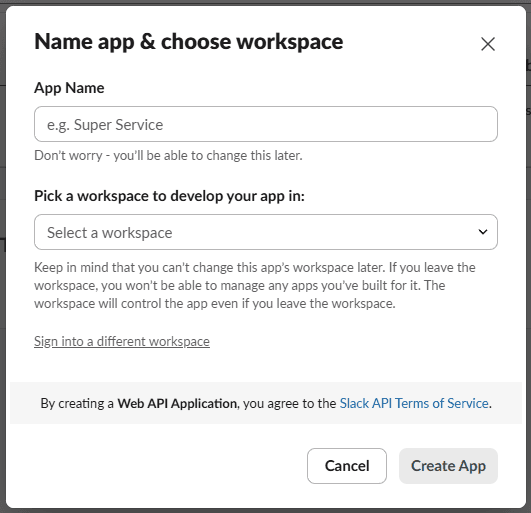
- Enter App Name:
SurfSense - Select the workspace to develop your app in
- Click "Create App"
⚠️ You won't be able to change the workspace later. The workspace will control the app even if you leave it.
Step 3: Get App Credentials
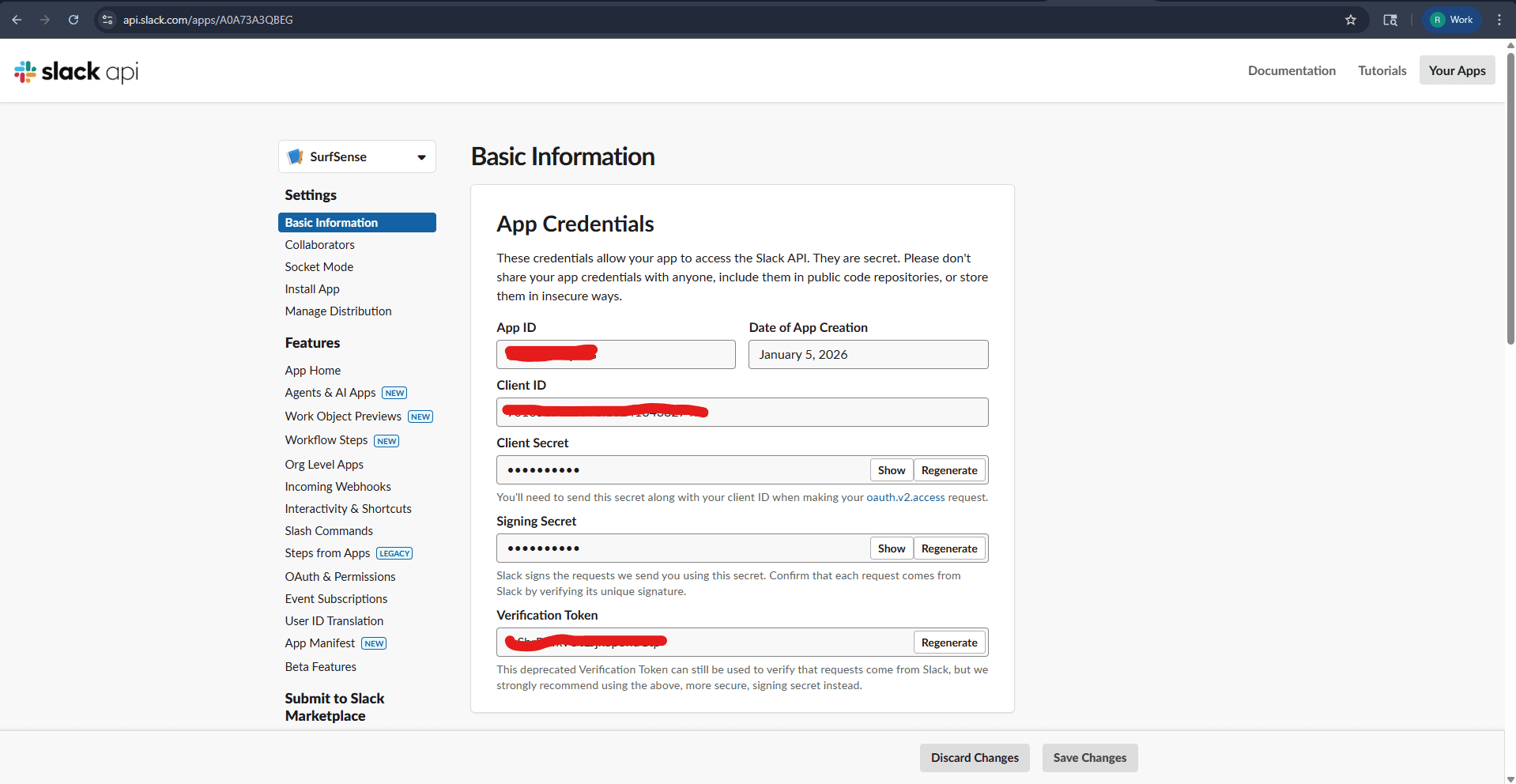
After creating the app, you'll be taken to the Basic Information page. Here you'll find your credentials:
- Copy your Client ID
- Copy your Client Secret (click Show to reveal)
⚠️ Never share your app credentials publicly.
Step 4: Configure Redirect URLs
- In the left sidebar, click "OAuth & Permissions"
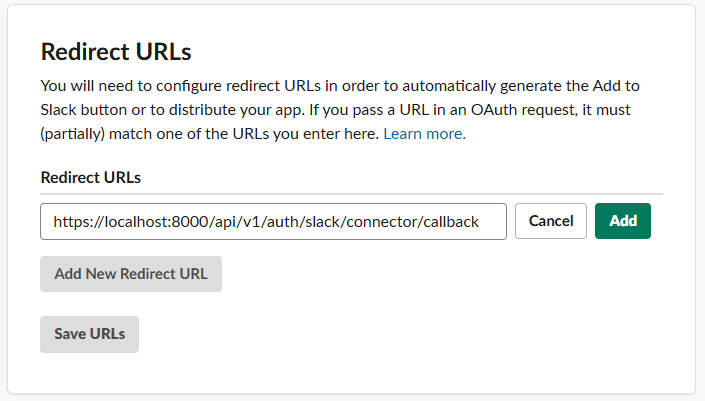
- Scroll down to Redirect URLs
- Click "Add New Redirect URL"
- Enter:
https://localhost:8000/api/v1/auth/slack/connector/callback - Click "Add", then "Save URLs"
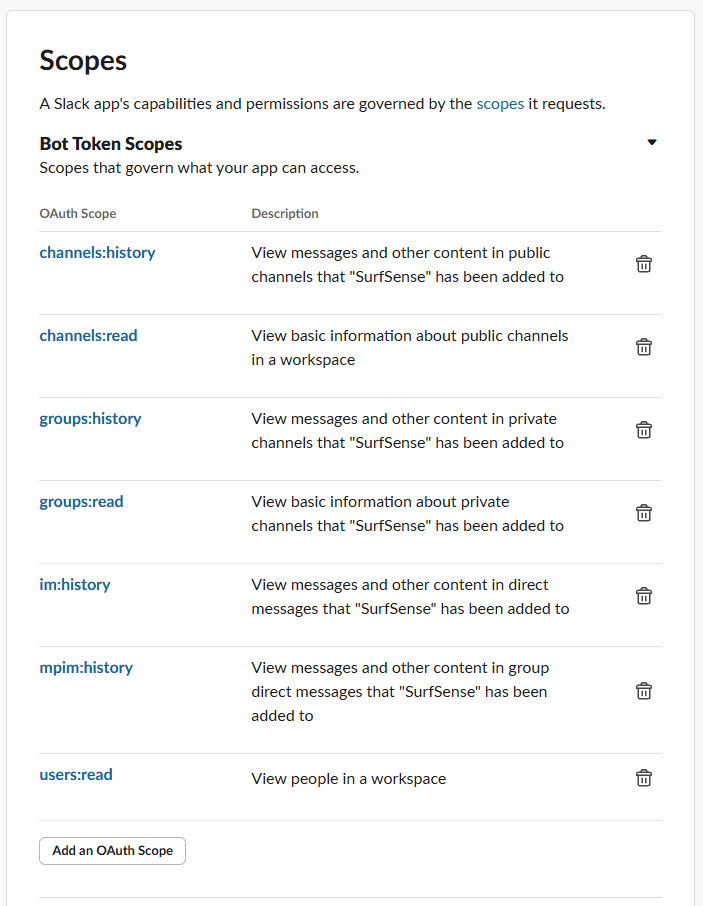
Step 5: Configure Bot Token Scopes
On the same OAuth & Permissions page, scroll to Scopes and add the following Bot Token Scopes:
| OAuth Scope | Description |
|---|---|
channels:history | View messages and other content in public channels |
channels:read | View basic information about public channels |
groups:history | View messages and other content in private channels |
groups:read | View basic information about private channels |
im:history | View messages and other content in direct messages |
mpim:history | View messages and other content in group direct messages |
users:read | View people in a workspace |
Click "Add an OAuth Scope" to add each scope.
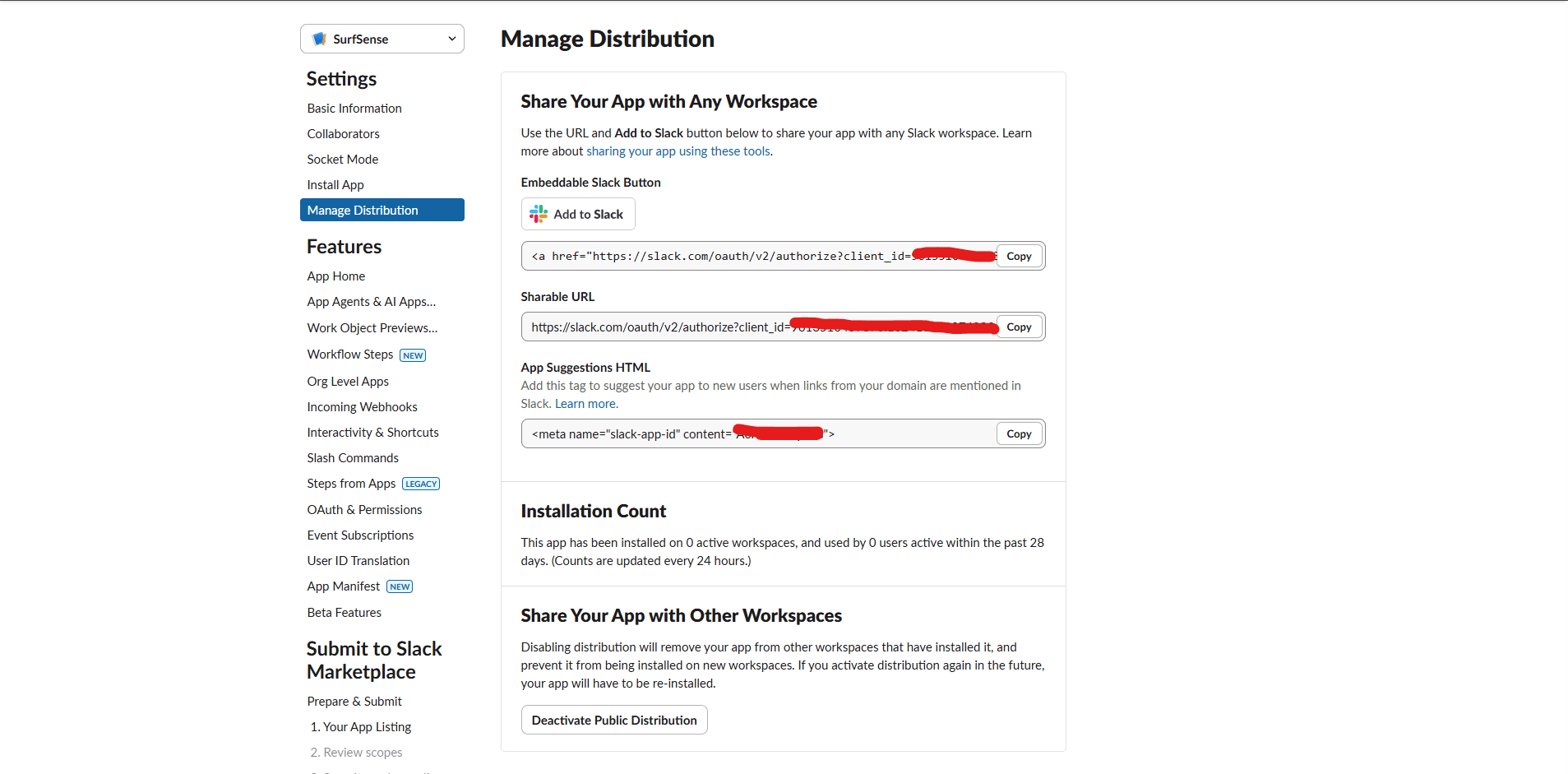
Step 6: Enable Public Distribution
- In the left sidebar, click "Manage Distribution"
- Under Share Your App with Other Workspaces, ensure distribution is enabled
- You can use the "Add to Slack" button or Sharable URL to install the app
Running SurfSense with Slack Connector
Add the Slack environment variables to your Docker run command:
docker run -d -p 3000:3000 -p 8000:8000 \
  -v surfsense-data:/data \
  # Slack Connector
  -e SLACK_CLIENT_ID=your_slack_client_id \
  -e SLACK_CLIENT_SECRET=your_slack_client_secret \
  -e SLACK_REDIRECT_URI=https://localhost:8000/api/v1/auth/slack/connector/callback \
  --name surfsense \
  --restart unless-stopped \
  ghcr.io/modsetter/surfsense:latest